StudyMap – Day 4: When Google Fought Back and n8n Won in Thirty Minutes
Four and a half hours with one platform. Thirty minutes with another. Here’s what that difference actually means.
Back to Google. What Could Go Wrong.
Today’s plan was straightforward. The Elasticsearch index was live, the curriculum data was ingested, and the MCP server was configured. All that remained was wiring it into Google’s Vertex AI agent platform and having a working end-to-end pipeline by lunchtime.
It is now the end of the day. Lunchtime was four and a half hours ago.
The pipeline is working. Just not through Google.
Vertex AI. Agent Builder. Gemini Enterprise. Studio. Pick One.
The first problem with building on Google’s agent platform in 2026 is finding it. Since the last time I was in here, Vertex AI Agent Builder has been rebranded as the Gemini Enterprise Agent Platform. The interface has been rebuilt. The documentation hasn’t caught up. And Gemini itself — the AI assistant I was using to navigate the platform — was confidently describing buttons that do not exist on my screen.
“At one point, Gemini told me to look for a wrench icon in the sidebar. I asked it three times. The wrench icon does not exist. The AI was hallucinating its own UI.”
This is not a small problem. If an AI model can’t accurately describe the interface of the platform it runs on, that’s a documentation and reliability issue for anyone trying to build with it seriously. The first hour was lost just navigating — bouncing between something called “Flow” (Google’s visual logic builder, essentially their version of n8n), a basic chatbot interface, and what turned out to be an express prompt-testing mode with no tool-connection capability at all.
Google’s agent tooling currently splits across at least three distinct interfaces: Dialogflow CX for flow-based agents, Agent Studio for agentic/playbook-based agents, and the Gemini API directly. The 2026 rebrand merged the branding but not the architecture. The result is a platform that looks unified but behaves like three different products depending on which entry point you used to get in.
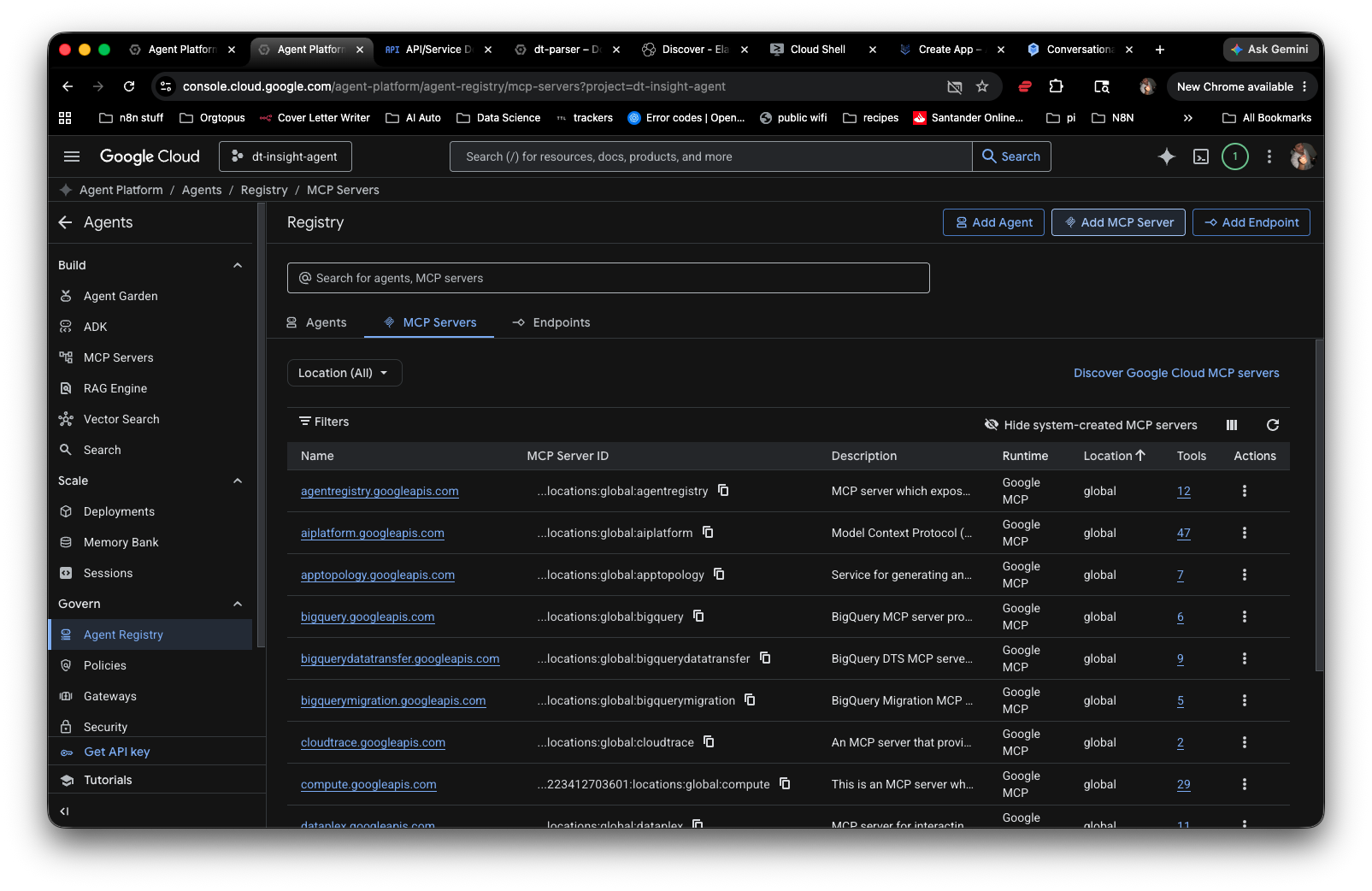
Four and a Half Hours of Permission Errors.
Once I located the correct interface — Agent Studio, Playbooks mode — the next challenge was connecting the Elastic MCP server. The URL was clear: the Kibana endpoint with /api/agent_builder/mcp appended. The authentication was an API key. On paper, a twenty-minute job.
In practice, it was a sequence of errors, each requiring solving a different layer of Elastic’s permission architecture before the next one revealed itself.
Authentication RequiredThe API key existed but held only Elasticsearch database privileges — not Kibana application privileges. Two separate permission systems, one platform. The error gave nothing away about which was missing.
403 ForbiddenA curl test from the terminal confirmed the key was reaching the server but lacked a specific Kibana privilege:
agentBuilder:read. The UI to grant this doesn’t surface it by that internal name. You have to know the identifier before you can find the toggle.JSON validation failuresAttempting to write the privilege directly via the API key JSON descriptors hit multiple schema validation errors in sequence. The required field names are version-specific and documented only in passing. Each error cleared one problem and revealed the next required field.
The Console workaroundEventually generated a working key via the Elasticsearch Dev Console using
POST /_security/api_keywith full Kibana application privileges written directly into the request body. This bypassed the UI entirely and produced a key that could actually reach the MCP endpoint.
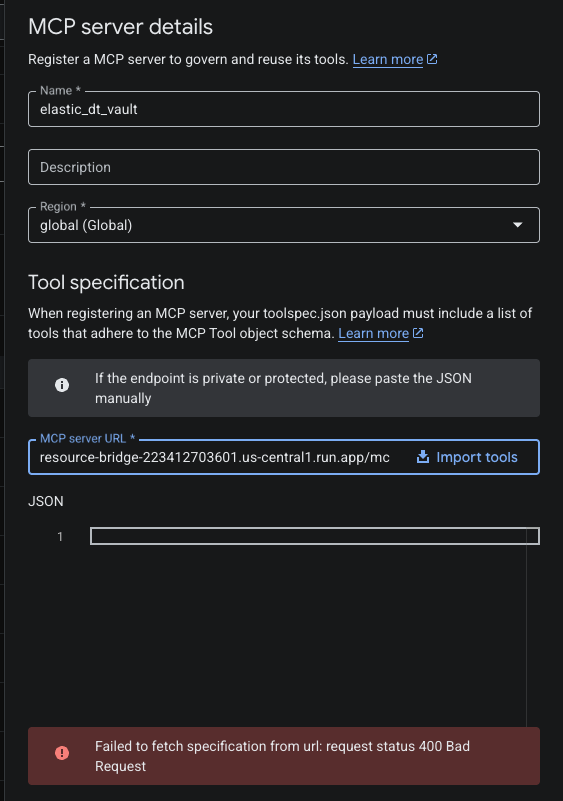
At this point the MCP server was reachable, authentication was working, and a tools list was coming back from the endpoint. But it was returning platform-level tools — Elastic’s internal cluster management tools — not the custom GCSE DT search tool built for the curriculum data.
The Elastic MCP endpoint at /api/agent_builder/mcp exposes cluster-level tools by default. To surface a custom agent tool, you need to either target the agent-specific endpoint at /api/agent_builder/agents/{id}/mcp, or explicitly create an index_search tool via the Kibana API and assign it to the agent. That assignment requires a curl command with the correct schema — and the schema itself took several iterations of validation errors to get right.
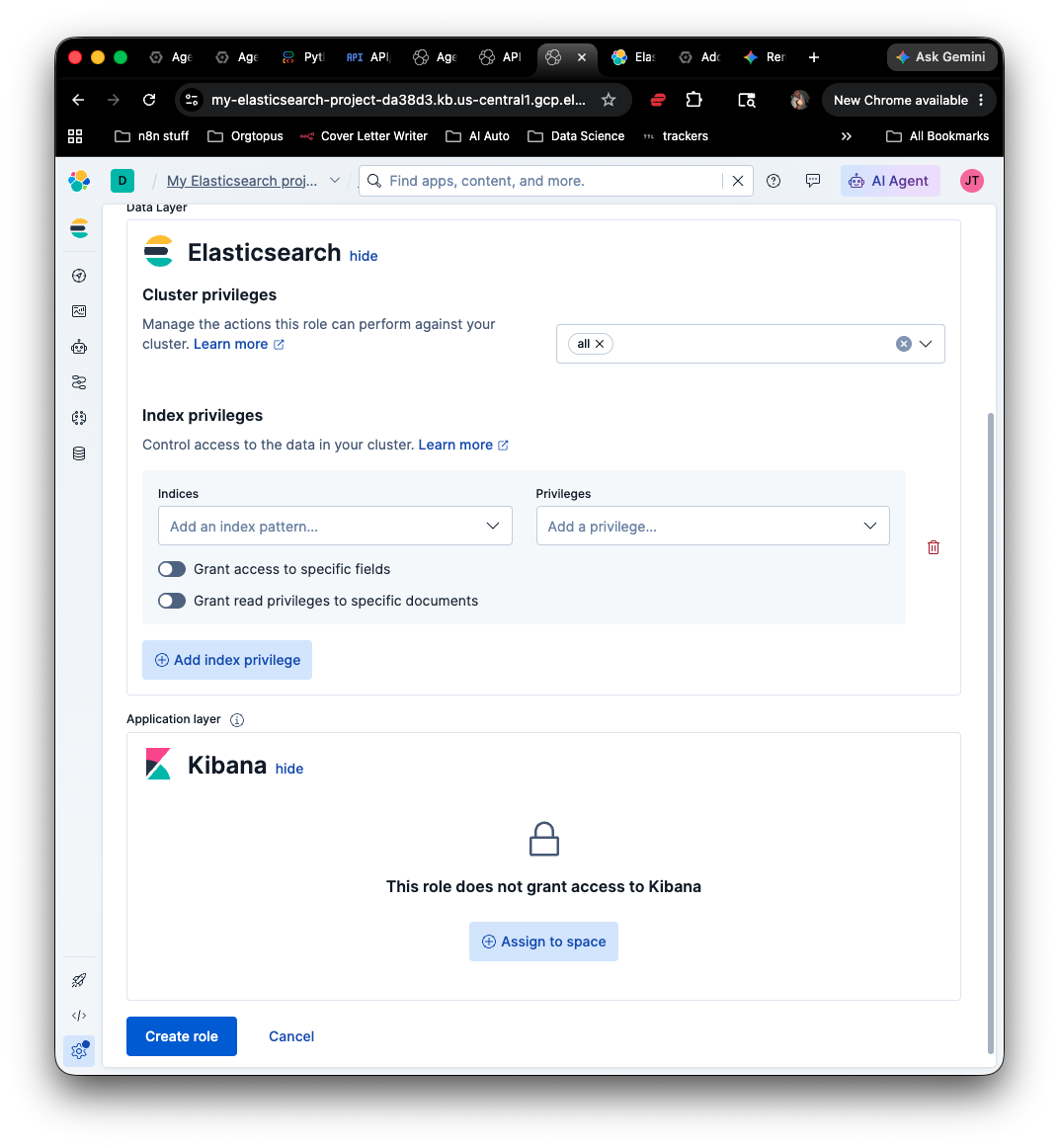
After getting the custom tool created, assigned to the agent, and confirmed as appearing in the tools list, I pointed the Google Studio interface at the same MCP endpoint. It accepted the URL. It accepted the header. Then: failed to fetch specification. Same category of error. Different platform. Another hour gone.
“Four and a half hours on Google’s platform. Thirty minutes on n8n. Same result. The lesson isn’t that Google is bad — it’s that complexity compounds fast when you’re building across platforms that weren’t designed together.”
Back to n8n. Thirty Minutes to a Working Result.
n8n is already running on my infrastructure and I use it daily across multiple client workflows. The MCP connection model in n8n is just an HTTP Request node — there’s no proprietary “Add MCP Server” interface, no specification validation layer, no hidden authentication schema to comply with. You set the method, the URL, the headers, and the body. It either works or it gives you an honest error message about why it doesn’t.
The connection sequence took four steps:
HTTP Request node, POSTURL pointed at the Kibana MCP endpoint. Authentication set to None — the header is added manually in the Headers section, which means n8n doesn’t add its own formatting or validation layer on top of it.
Authorization headerName:
Authorization. Value:ApiKey [encoded key]. One field, one value. No schema to satisfy.tools/list callSent a JSON-RPC request to list available tools. Got back the full platform tool set immediately, confirming authentication was working end to end.
tools/call against the curriculum indexCalled the custom
search-gcse-dt-textbooktool with annlQueryparameter. Got back actual curriculum snippets from the index within seconds.
The first successful response included textbook content on HIPS — High-Impact Polystyrene. Its mechanical properties, its use in disposable cutlery, the specific exam questions that reference it. Real content, from the actual index, grounded in the real curriculum.
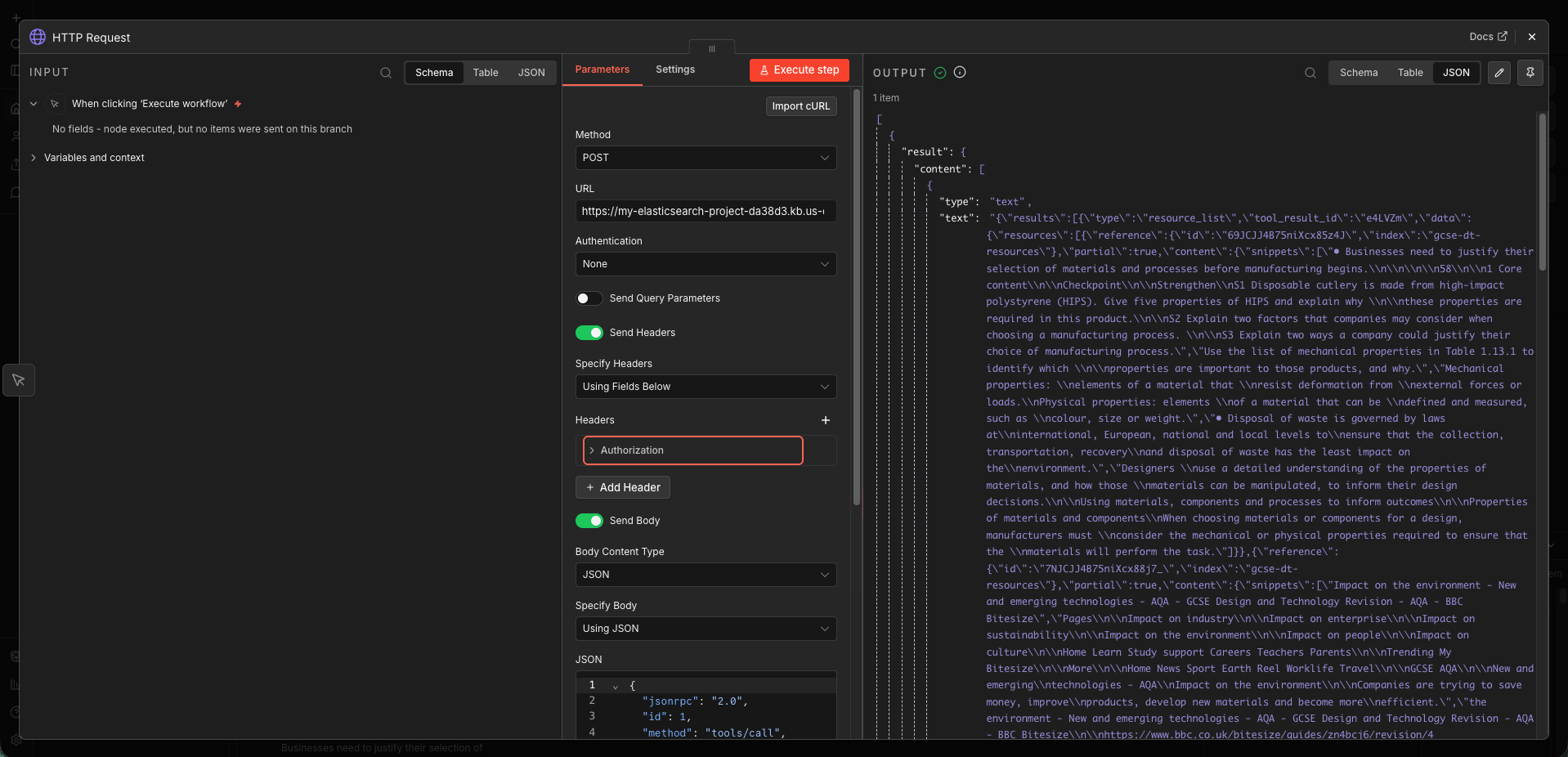
The MCP call from n8n sends only the search query to Elastic — no student data, no identifiers, no context from the workflow state. The privacy architecture established earlier holds: the retrieval layer only ever sees the topic being searched, never who it’s being searched for.
The Architecture as It Stands at End of Day 4.
Four days in, this is the confirmed working stack:
Elastic Cloud index
gcse-dt-resourcescontains the curriculum documents, indexed and searchable via semantic vector search. Queries return contextually relevant snippets, not just keyword matches.Custom MCP tool
search-gcse-dt-textbookcreated via Kibana API, scoped to the curriculum index, accepting natural language queries via thenlQueryparameter. Confirmed assigned to the Elastic AI agent.n8n HTTP nodeAuthenticated connection to the Elastic MCP endpoint. Can call
tools/listandtools/call. Returns structured JSON with curriculum snippets from matching documents. Reliable, debuggable, and already integrated with the rest of the workflow infrastructure.
What’s not yet built: the Google Sheets trigger, the Apps Script button for teacher approval, the tokenisation layer that strips student PII before any data touches external APIs, the AI content generation step that converts curriculum snippets into a themed study resource, and the Google Drive output with a link written back into the sheet. That’s the next phase of the build.
Google’s platform may still have a role in this. The content generation component is where a well-instructed LLM matters most, and Gemini is a legitimate option there. But the retrieval layer is staying in n8n. Reliability over elegance.
- Elasticsearch index live with GCSE DT curriculum data
- Elastic API key with correct Kibana application privileges confirmed
- Custom search-gcse-dt-textbook MCP tool created and assigned
- n8n to Elastic MCP connection working — authenticated, returning curriculum data
- Pivot decision made: n8n handles retrieval, LLM handles generation
- Google Sheets trigger + Apps Script approval button for teachers
- PII tokenisation layer — student data never leaves the workflow unmasked
- AI content generation node — themed study resource from curriculum snippets
- SEN/EAL branching logic — accessibility adaptations by student profile
- Google Drive output — create file, name it, write link back to sheet
- End-to-end test with real exam data structure
Building AI for your school?
We’re documenting every step. Follow the build or get in touch.